Photo change tools
Change DPI to 300 online:
https://convert.town/image-dpi
Image resulation imcrease
https://www.resizepixel.com/
What are the technical requirements for images?
Only certain formats, color profiles and dimensions are accepted
File Format
We accept images in JPEG and TIFF formats, but we recommend submitting your images
We accept images in JPEG and TIFF formats, but we recommend submitting your images
as JPEGs because all images are automatically converted to jpeg upon approval
into our collection. We do not currently accept PSD files or TIFFs with layers.
We accept EPS files, but require that they be saved in a format that is compatible with
We accept EPS files, but require that they be saved in a format that is compatible with
Adobe Illustrator 8 or 10.
Generally, we do not accept still frames from video files (even 8K) as they do not meet
Generally, we do not accept still frames from video files (even 8K) as they do not meet
our technical quality standards.
Color profile
Shutterstock images are offered in sRGB since most images on the
Color profile
Shutterstock images are offered in sRGB since most images on the
Internet are displayed in that profile. If you submit images in a different color profile, the
colors will likely be altered during conversion to sRGB, so we recommend converting your
images to sRGB before uploading them to Shutterstock.
File Size and Dimensions
All images must be at least 4 MP (megapixels) or larger and set at highest quality settings to
File Size and Dimensions
All images must be at least 4 MP (megapixels) or larger and set at highest quality settings to
produce an acceptable file dimension for submission to Shutterstock.
The maximum file size you can upload using your web browser is: 50 MB for photos,
The maximum file size you can upload using your web browser is: 50 MB for photos,
100 MB for EPS. If you upload via FTPS, you can upload JPEGs up to 50 MB,
EPS files up to 100 MB, and TIFFs up to 4 GB in size.
Megapixels (MP) are different from megabytes (MB), as they refer to the dimensions and not
Megapixels (MP) are different from megabytes (MB), as they refer to the dimensions and not
the file size. To calculate your megapixels, multiply the X (width) by the Y (height)
of your image or artwork.
For example:
2000 x 2400 pixels = 4.8 Megapixels. A file of this size is acceptable.
1200 x 3000 pixels = 3.6 Megapixels. This is smaller than our minimum size requirement,
For example:
2000 x 2400 pixels = 4.8 Megapixels. A file of this size is acceptable.
1200 x 3000 pixels = 3.6 Megapixels. This is smaller than our minimum size requirement,
and this file will not be accepted by our system.
Regarding Pixels/Points/Picas/Inches:
Below is a translation of what 4 MP means in each measurement. Keep in mind, these values
Regarding Pixels/Points/Picas/Inches:
Below is a translation of what 4 MP means in each measurement. Keep in mind, these values
differ based on your computer's DPI/PPI settings, but at 72 DPI/PPI (which is the current standard),
those values would be:
4 million pixels = 4 million points = 27,562 picas = 771.62 square inches
EPS files must be a minimum of 4 MP, but no greater than 25MP. With EPS files, this requirement
4 million pixels = 4 million points = 27,562 picas = 771.62 square inches
EPS files must be a minimum of 4 MP, but no greater than 25MP. With EPS files, this requirement
applies to the size of the bounding box around your artwork, not your artboard. In the example
below the artboard is the white square behind the yellow stars. The bounding box is the automatically
generated blue outlined box around the actual artwork.
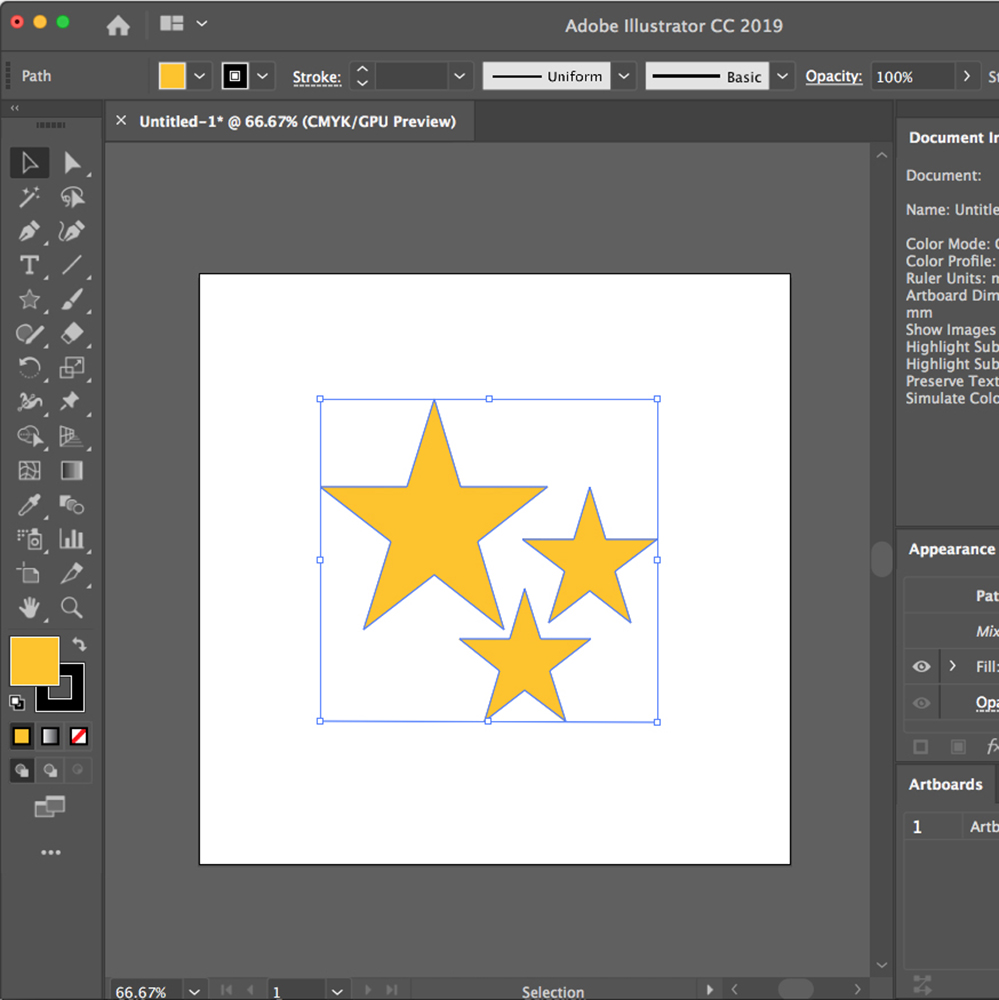
So, even if your artboard is 4 MP or above, but the bounding box around your artwork is
So, even if your artboard is 4 MP or above, but the bounding box around your artwork is
under 4 MP, you will receive an error.
In order to fix this issue, please increase the dimensions of your artwork to be 4 MP or higher.
In order to fix this issue, please increase the dimensions of your artwork to be 4 MP or higher.
In Adobe Illustrator:
- Select your entire artwork.
- In the Transform panel, expand your artwork to be at least 4 MP. In CC 2018 and newer,
- this panel is nested under the Properties tab.
- Adjust your artboard accordingly, so that your artwork doesn't exceed it.
Comments
Post a Comment